Screenshots
A quick tour of EasySpeak in action. Each image shows a different part of the voice-control workflow, from launching the daemon to driving the mouse and browser entirely by voice.
Starting the daemon
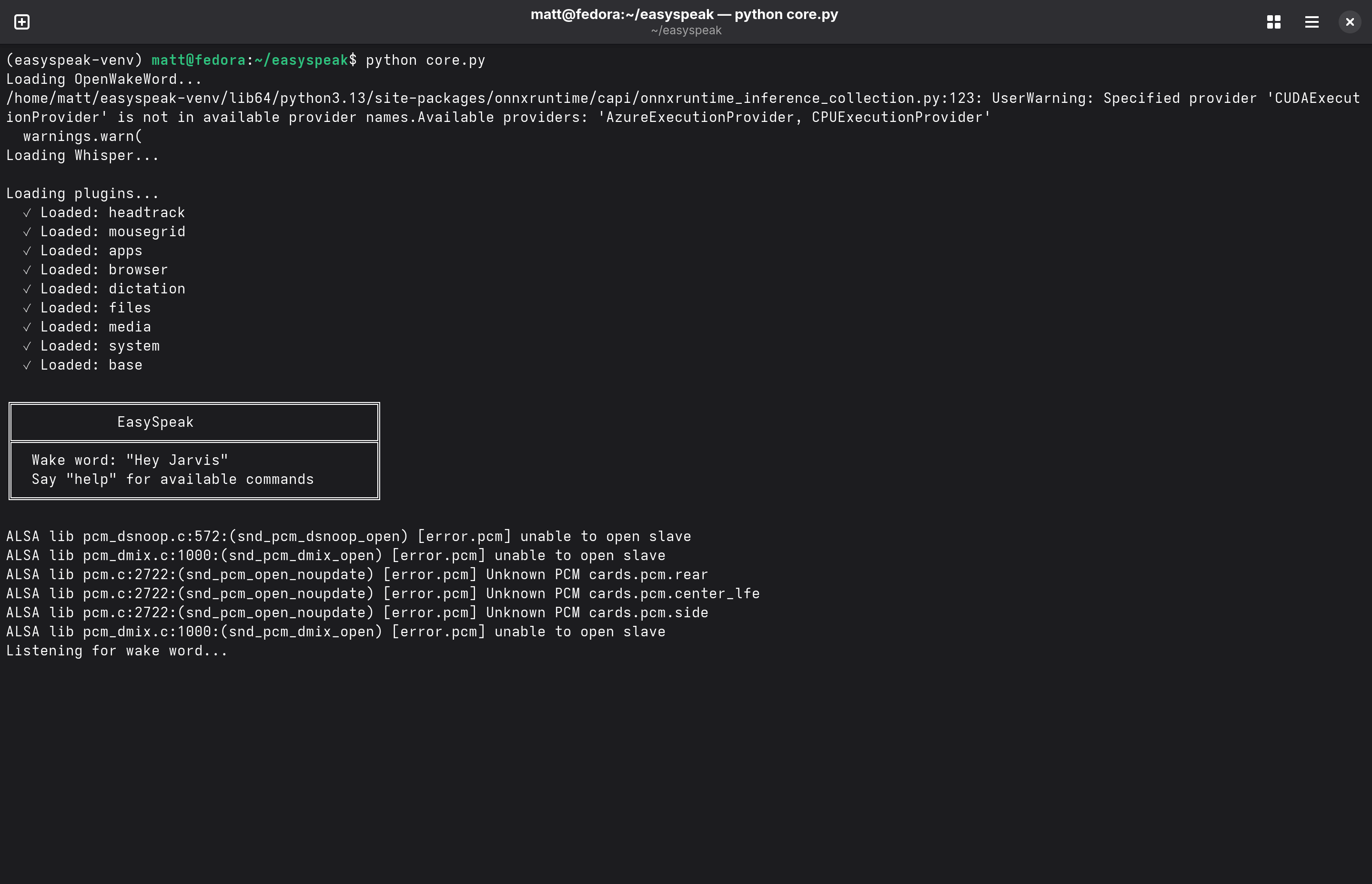
An earlier version of EasySpeak running from a terminal. On start it loads the wake-word model (OpenWakeWord) and the speech recognizer (Whisper), then brings up each plugin in turn — head tracking, mouse grid, apps, browser, dictation, files, media, and system. The banner confirms the wake word ("Hey Jarvis") and the daemon settles into Listening for wake word….
The ALSA lib … unable to open slave lines are harmless audio-device probing
noise (suppressed in newer versions).
Tray menu and Quick Settings
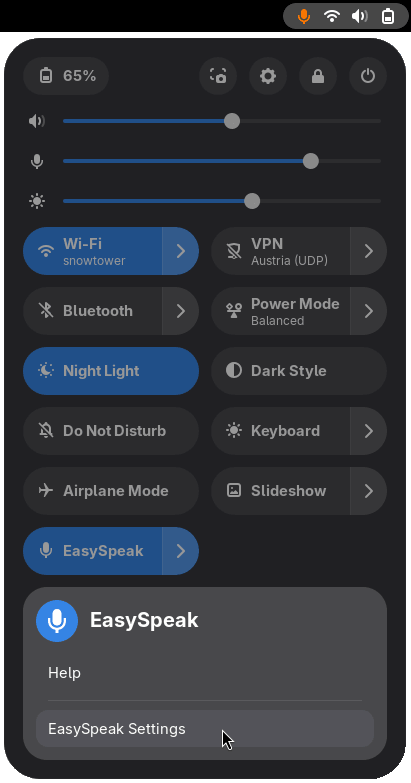
EasySpeak lives in the GNOME top bar, ready whenever you want to mute it, wake it, or reach its settings. It shows up either as a panel tray icon (when asleep) or as a Quick Settings toggle -- a single switch in its extension settings decides which.
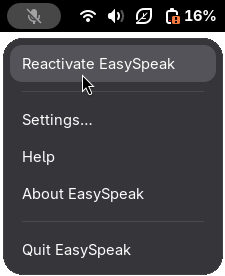
Say, "stop listening", to make EasySpeak stop responding to your voice. The panel icon (left) switches to a muted microphone to show it's asleep, and EasySpeak ignores everything until you wake it again. Click the icon and choose Reactivate EasySpeak to start listening once more; the same menu opens Settings…, Help, and the About EasySpeak dialog, or shuts the daemon down with Quit EasySpeak.
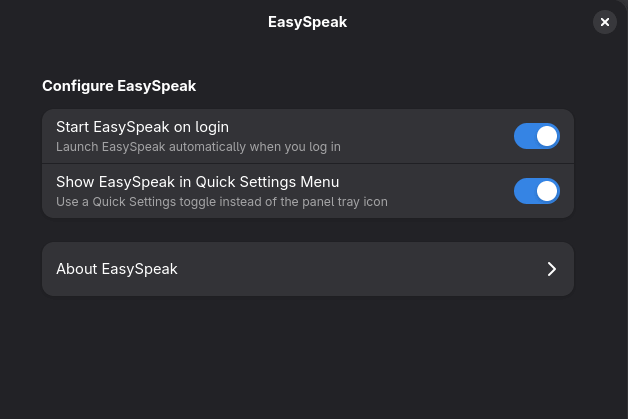
Prefer to keep the top bar tidy? Turn on Show EasySpeak in Quick Settings Menu in the extension settings (right) and EasySpeak moves into GNOME's Quick Settings as a toggle (center) instead of the panel icon. Expanding the toggle reveals the same Help and EasySpeak Settings actions, so either entry point reaches the very same extension settings — the panel GNOME's Extensions app exposes for EasySpeak, which also makes it start on login and opens About EasySpeak.
KDE Plasma
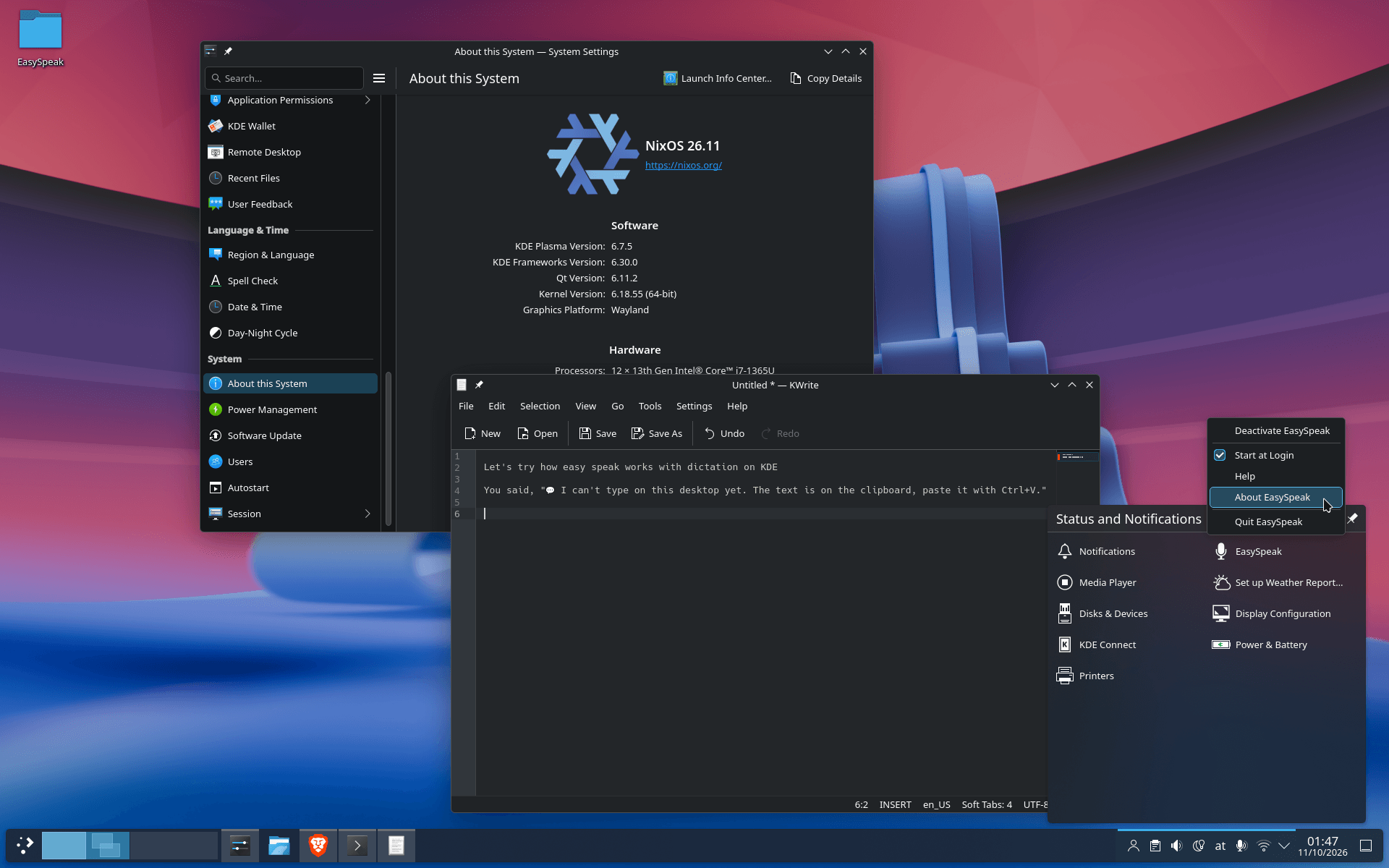
On KDE Plasma, EasySpeak sits in the system tray. While it listens, the icon waits among the hidden icons, behind the arrow in the tray; when it's asleep, it moves into the panel, where you can't miss it. Its menu offers Deactivate or Reactivate EasySpeak, Start at Login, Help, About EasySpeak, and Quit EasySpeak.
Dictation can't type on Plasma yet, so EasySpeak puts the text on the clipboard and tells you to paste it with Ctrl+V, as in KWrite above. See Compatibility for what works on which desktop.
Mouse grid
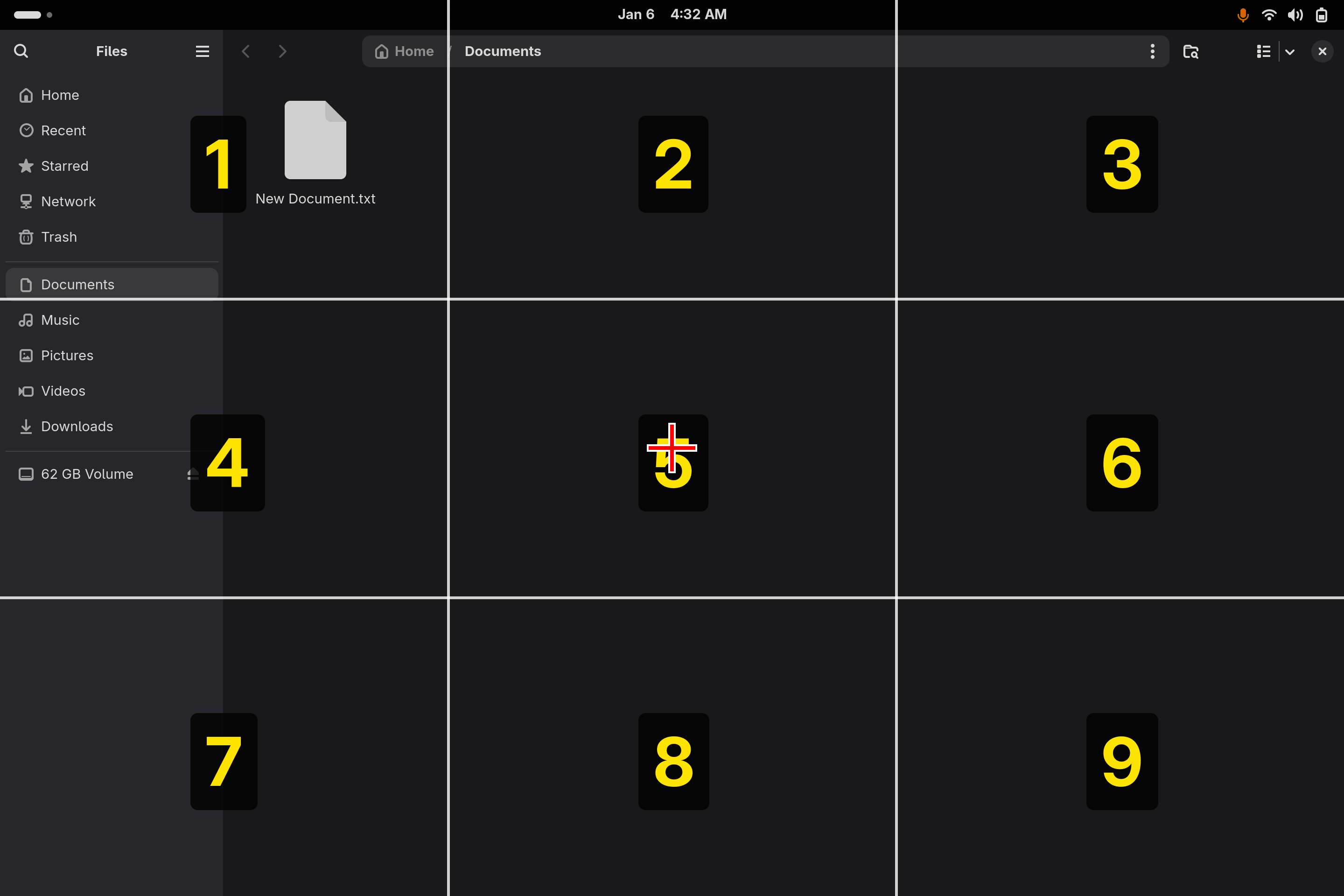
The mouse grid ("grid" command) overlays a numbered 3×3 grid on the whole screen. Saying a digit zooms the grid into that cell; repeat until the crosshair sits over your target, then say "click". Here it is layered over the GNOME Files manager — the grid works over any window.
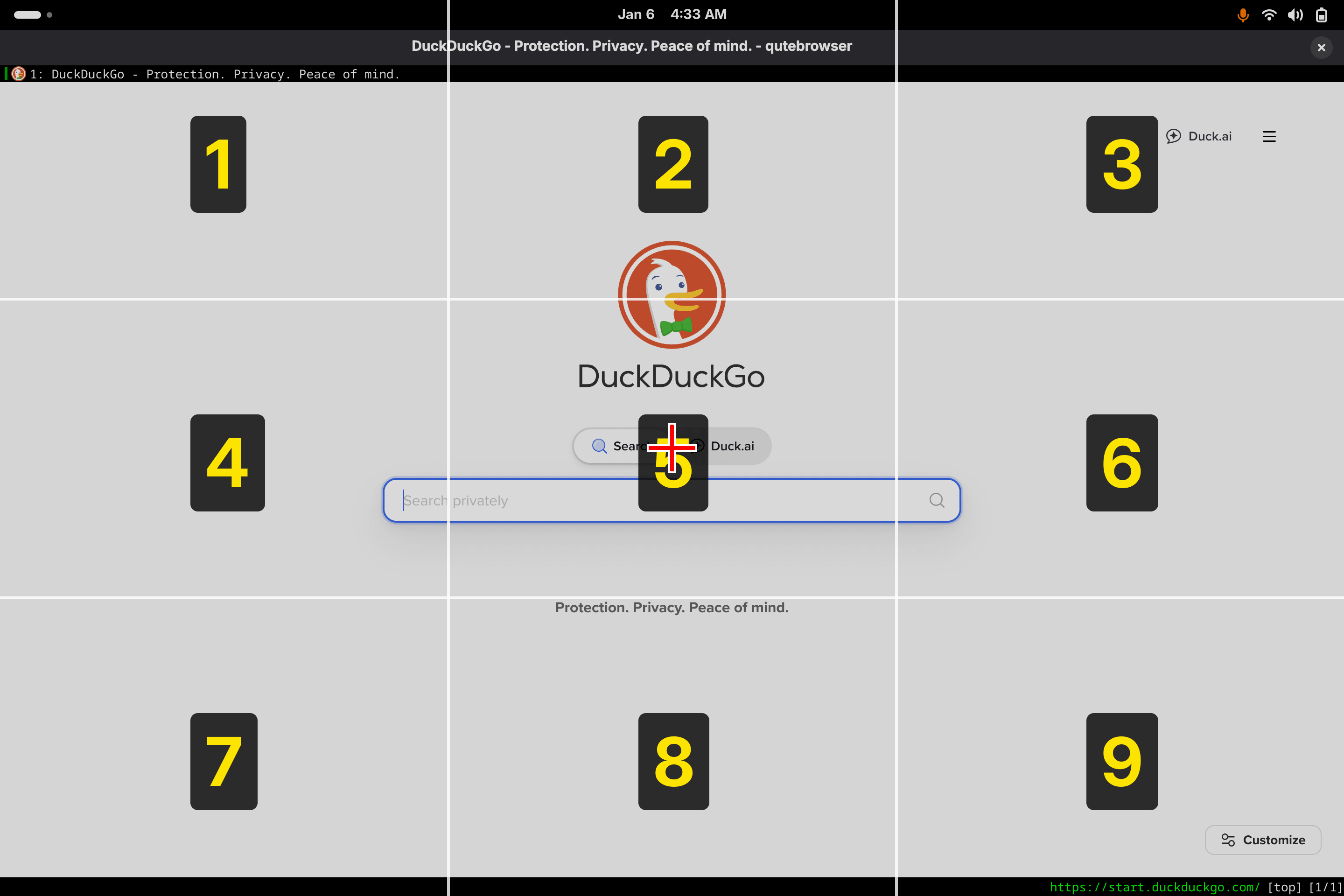
The same grid driving the cursor inside the browser. Because the overlay is compositor-level, the identical "say a number to zoom, then click" flow reaches anything on screen, web pages included.
Browser link hints
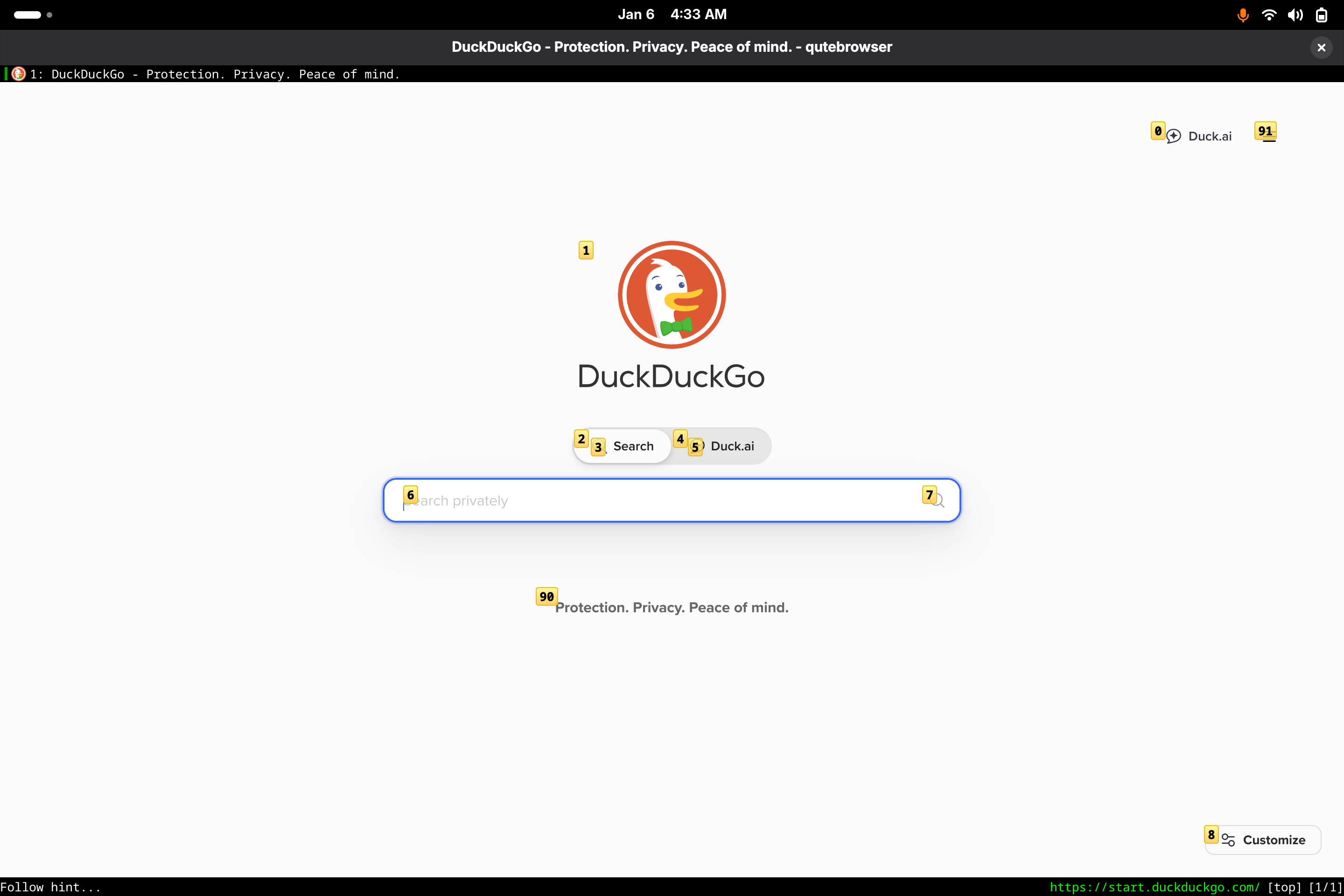
Browser control via qutebrowser's hint mode ("numbers" command). Every clickable element — the search box, the Search / Duck.ai toggles, the Customize button — is tagged with a short label. Speak a label to follow that link or focus that field, no mouse needed.